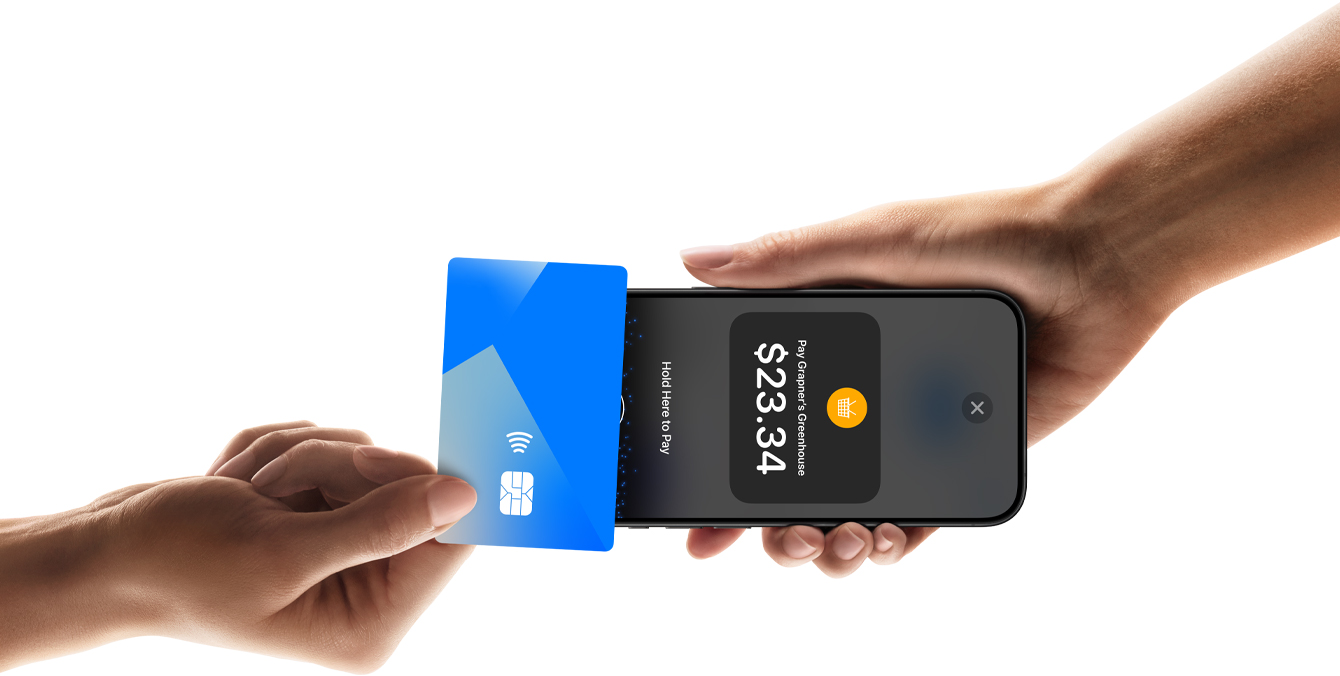
Short answer: Apple Tap to Pay turns any iPhone XS or newer into a contactless card reader — no terminal, no dongle, no monthly hardware lease. The customer taps their card or phone against yours, payment clears, and the charge auto-syncs to the client profile, your accounting, today's payout, and your GST/HST report. BarberFlow ships it inside the mobile app. This post explains how the technology works, what it does and doesn't accept, and how to switch it on.
How Apple Tap to Pay actually works
It looks like magic. It's three pieces of hardware doing very specific things in sequence:
- The NFC controller. The same chip an iPhone uses for Apple Pay can also act as a reader — listening for a card or another phone tapped against it. Apple unlocked this mode for third-party payment apps in 2022.
- The Secure Element. Card data never touches regular iPhone storage. The NFC handshake hands the encrypted payment credential to a tamper-resistant chip Apple calls the Secure Element — the same one that holds Apple Pay tokens. From there it's signed and sent off-device.
- The payment network. The encrypted credential goes to the processor (in BarberFlow's case, an EMV-certified pipeline), the bank approves or declines, and the result lands back on the iPhone in under two seconds. Same path as a chip-and-PIN terminal — different reader.
Net effect: a $0 reader that's PCI-compliant out of the box, supports every contactless card and wallet, and can't store card data even if the device is compromised. Apple's developer documentation lives at Apple — Tap to Pay on iPhone if you want to go deeper.
What it accepts
| Payment method | Works? | Notes |
|---|---|---|
| Tap a credit card | Yes | Visa, Mastercard, Amex — all contactless-enabled |
| Tap Interac debit | Yes | Interac Flash. PIN required above the Flash cap |
| Apple Pay | Yes | Customer holds their iPhone or Apple Watch to yours |
| Google Pay / Samsung Pay | Yes | Any phone with NFC and a wallet app |
| Insert chip card | No | Use the BarberFlow Reader for chip-only cards |
| Swipe magstripe | No | Magstripe is dead. Long live the chip |
If a client only has a magstripe card or a non-contactless chip card, that's the one case where you'll want the BarberFlow Reader — it pairs over Bluetooth and handles chip insertion and Interac PIN. For the vast majority of cards issued in Canada today, the iPhone is enough.
How BarberFlow ships it: built-in and auto-syncing
Apple gives you the NFC reader. The question is what your software does with the payment once it lands. A generic Tap to Pay app gives you a confirmation screen and a Stripe dashboard somewhere else. BarberFlow does the rest — automatically.
| The moment a charge clears… | BarberFlow does this automatically |
|---|---|
| Attaches to the booking | The transaction ties to that day's appointment — service, barber, tip, all linked |
| Updates the client profile | Lifetime spend, last visit date, tip average, and cadence all recalculated |
| Tags the right tax | GST/HST or PST/GST applied per location — Ontario shops at 13%, BC at 5% + 7%, automatically |
| Adds to today's payout | Daily automatic payout to your bank — nothing to trigger manually |
| Books the bookkeeping | Logged into Accounting → Payments, ready for one-click QuickBooks export |
| Feeds analytics | Occupancy, tips, at-risk clients — all updated live on your dashboard |
This is the part that doesn't exist with a generic terminal. Most Tap to Pay apps are payment-only — you still need a separate POS, a separate accounting tool, and a separate client database. BarberFlow's mobile app is the POS, the client record, the calendar, the payout pipeline, and the tax report. Tap to Pay feeds it.
Turn it on
First-time setup takes about three minutes. Apple's verification step is the slow part.
Enable Tap to Pay in the BarberFlow mobile app
- 1Open the BarberFlow app on the iPhone you'll use as the reader
iPhone XS or newer, running the latest iOS. Sign in with your owner or employee account — each barber takes payments from their own phone.
- 2Go to Settings → Payments
Tap the gear in the bottom right, then Payments. You'll see a Tap to Pay on iPhone section with a toggle.
- 3Flip the toggle and accept Apple's terms
iOS opens an Apple verification flow — sign in with your Apple ID, agree to Apple's Tap to Pay terms, and confirm the business on file matches your BarberFlow company. This is Apple's check, not ours.
- 4Run a $1 test charge
From the POS in the app, ring up a $1 service and tap your own card to the phone. Approved? You're live. The charge — and the refund you'll fire right after — lands on your dashboard within seconds.
See the full Tap to Pay on iPhone product page
How BarberFlow turns your iPhone into a chip + tap + Apple Pay + Interac terminal, with the BarberFlow Reader as a backup for non-contactless cards.
The four things that trip shops up
- "Tap to Pay won't enable." Check the iOS version (Settings → General → Software Update). If the phone won't take iOS 16.4 or later, it's too old to host Tap to Pay.
- "The card won't read." Nine times out of ten it's a non-contactless card — look for the wifi-style symbol on the card face. No symbol, no tap. Use the BarberFlow Reader or fall back to cash.
- "Interac asks for a PIN." Above the Interac Flash per-transaction cap ($250 as of 2026), the card switches to chip-and-PIN. Tap to Pay on iPhone is contactless-only — that's a hardware-reader-only flow. Keep the BarberFlow Reader on hand for higher-ticket services.
- "Tap to Pay is gone on my new phone." Apple's enablement is scoped per device. New iPhone? Run the setup again — 60 seconds the second time.
Frequently asked questions
Can a barber accept credit cards on an iPhone without extra hardware?
Yes — Apple Tap to Pay on iPhone turns any iPhone XS or newer running iOS 16.4+ into a contactless card reader. Inside BarberFlow, switch it on at Settings → Payments. No terminal, no Bluetooth dongle, no monthly hardware lease.
What iPhone models support Tap to Pay?
iPhone XS or newer running iOS 16.4 or later. Older models (iPhone X and earlier) don't have the required NFC capabilities and cannot host Tap to Pay.
Does Apple Tap to Pay accept Interac?
Yes — it accepts Interac Flash for contactless tap. Above the Interac Flash per-transaction cap (currently $250), the card defaults to chip-and-PIN, which requires a physical chip reader like the BarberFlow Reader.
How much does Tap to Pay cost through BarberFlow?
Card-present transactions through Tap to Pay are 2.8% + $0.30 per transaction, the same pricing as the BarberFlow Reader and online checkout. No Amex surcharge, no Apple Pay surcharge, no premium-card upcharge. Cash bookings cost nothing, and if your current processor charges less, BarberFlow price matches.
Is Apple Tap to Pay PCI-compliant?
Yes. Card data never touches the iPhone's regular storage — the NFC handshake passes the encrypted credential directly to the Secure Element, the same tamper-resistant chip that holds Apple Pay tokens. Apple ships Tap to Pay as PCI-compliant out of the box.
Does every barber need to enable it separately on their own phone?
Yes. Apple scopes Tap to Pay enablement per device and per Apple ID. Each barber runs the 60-second setup on their own iPhone using their BarberFlow employee account.
Quick checklist
- iPhone XS or newer on the latest iOS.
- BarberFlow mobile app installed and signed in.
- Settings → Payments → Tap to Pay on iPhone → toggle on, complete Apple verification.
- $1 test charge to confirm — refund yourself in one tap.
- Keep a fallback for non-contactless cards (the BarberFlow Reader, or cash).
- Each barber's phone needs its own enablement. Plan ten minutes per new team member.
Once Tap to Pay is on, the rest of BarberFlow handles itself. The charge attaches to the booking, the customer profile updates, the GST/HST gets tagged per location, the payout queues for tonight, and your accounting stays current. If you're new to the tax side, the Ontario HST guide and the BC PST guide cover exactly which rates BarberFlow auto-applies to your tap charges.
- Tap to Pay on iPhone — developer documentation — Apple Developer
- Apple announces Tap to Pay on iPhone — Apple Newsroom
- Interac Debit — contactless payments — Interac


